Showing posts with label Ubuntu 12.04 LTS. Show all posts

Friday, December 14, 2012

Eclipse+Android on Ubuntu 12.04 (Part 2)

This is the second part to my blog on installing and using Eclipse as the Java programming environment. It does not use the Google ADT - instead you either have Eclipse from Ubuntu's repository already installed or you choose to install Eclipse from Ubuntu's repository instead of the Google ADT.

If you have already installed Eclipse from Ubuntu's repository, you now have to configure Eclipse to use the Google ADT. Skip step 1 below and start at step 3. On the other hand, if you have not installed Eclipse from Ubuntu's repository, start at step 1.

I hope that you do have Synaptic installed on your system - if not, install it now by opening a terminal and executing:

  sudo apt-get install synaptic

  1. To use Synaptic to install Eclipse from Ubuntu's repository, start Synaptic, enter your password, then type 'eclipse' into the search box. The entry for Eclipse will appear - mark it for installation, and the rest of the additional items, and then click on the 'Apply' button. Wait for download and install process to finish, close Synaptic and you are done! Skip the instructions below and proceed directly to 2.

    To use the command line, start a terminal, and type:

      sudo apt-get install eclipse

    Type 'Enter' when prompted, wait for the packages to be downloaded and installed, close the terminal and you are done!

  2. Start Eclipse for the first time by clicking on the dash, then entering 'eclipse' in the search box, and finally clicking on the icon for Eclipse that will appear.

    Eclipse will start and a window will pop-up (see below) asking you to set a workspace - I use '/home/(username)/Projects/Android (where username is your login name) but you can place it anywhere you like or accept the default of /home/(username)/workspace. You can also set this as the default and not ask again - then click OK.

    Workspace Launcher

    Eclipse will start loading and you will then see a Welcome screen like the one shown below.

    Welcome screen

    Click on 'Workbench' (near top right corner of the screen) and the main workbench screen will appear (see below).

    Main workbench screen

    You can, at this stage, right-click on the Eclipse icon in the dock and select 'Lock to Launcher'. This way Eclipse can be easily started any time by clicking on that icon.
     
  3. Click on Help (on the top menu bar), then on select 'Install New Software'. A new window called 'Available Software' will pop-up (see below)

    Available Software window

    Click the ‘Add’ button at the top of the window. An “Add Repository” window will pop up. Pick a name, (I chose ‘ADT Plugin’ - ADT stands for Android Development Tools), then enter the following URL in the ‘Location’ box and click OK.

      https://dl-ssl.google.com/android/eclipse/

    Note: If you have trouble acquiring the plugin, try using "http" in the URL, instead of "https". For security reasons, https is preferred.

    Add Repository window

    The window will close and a 'Pending' message will appear on the Available Software window - this indicates that the software is checking the URL for the plug-ins. When this is complete, you will see the 2 items listed (see below). Select the checkbox next to Developer Tools and click Next.

    Available Software entries

    In the next Install Details window, you'll see a list of the tools to be downloaded (see below) - click Next.

    Install Details window

    Read and accept the license agreements (see below), then click Finish. The plug-ins will be downloaded and installed. Click OK if you get a security warning saying that the authenticity or validity of the software can't be established. At the end of this process, you will be prompted to restart Eclipse - do so.

    Review Licenses window

    Downloading and installing plugins

    Security Warning

    Restart notice

    When you arrive back at the main workbench, you will see a window (see below) stating that location of the Android SDK has not been setup - click on the 'Close' button. You will set the location of the Android SDK next. On the Welcome to Android Development window (see below), click on the 'Use existing SDKs' button and then browse to the location of the SDK which happens to be '/home/(username)/android-sdk-linux-x86' - then click on Finish. You will then be back at the main workbench.

    Android SDK location not set

    Set Android SDK location

    Note that an error message (Sending Tracking request failed!) may appear in the Console part of Eclipse (see below). This is known bug which has been reported but it does not seem to be harmful to Android software development on Eclipse - so, for the time being, just ignore the message.

    Eclipse console message

    One last thing - if you open Eclipse's Windows menu, you will not find the SDK Manager and the AVD Manager there. Also, there is no Run button on the toolbar. To make Android programming with Eclipse easier, configure it by clicking the Window menu item, followed by clicking on the Customize Perspective... item. The Customize Perspective - Resource window will open as shown below.

    Customize Perspective - Resource

    Click on the Command Groups Availability tab and place a check mark on the Android SDK and AVD Manager item as shown. Also scroll down on the 'Available command groups' and place a check mark on the Launch item as shown below. Then click OK.

    SDK and AVD Managers selected
                                                   Launch selected

    If you now open the Window menu, you will find both the Android SDK Manager and the Android Virtual Device Manager listed there. You will also find the 'Run' button in the Eclipse toolbar.
That's it - you are now ready to start developing Android software on your Ubuntu 12.04. My next blog will show you a simple 'Hello, World' project, a few sample projects and will also describe some of the resources you can use to start program development on Android.


Tuesday, December 11, 2012

Eclipse+Android on Ubuntu 12.04 (Part 1)

So far, my previous blogs on Ubuntu 12.04 has described how to install Java and the Android SDK. If you have followed the blogs, you will now be ready for the next step towards Android software development and that is to install a Java programming environment called Eclipse. Of course, first we have to install this (if it has not been installed yet). Currently, you can either install Eclipse as part of the Google Android Developer Tools (ADT) bundle or you can install Eclipse from Ubuntu's repository. Which Eclipse to install is entirely your choice - there are benefits to either choice - for example, if you like to keep your development packages up-to-date with auto-update then installing Eclipse from Ubuntu's repository is the only choice (the ADT bundle from Google does not offer auto-update for Eclipse).

If Eclipse from Ubuntu's repository has already been installed it still be used as the Android program development - just ignore the sections on installing and proceed to installing the ADT into Eclipse as outlined in Part 2.

The install process is very straightforward depending on which Eclipse you select to use. For this first part, I will describe the procedure for installing Eclipse from Google's ADT bundle.

  1. First head over to:

      http://developer.android.com/sdk/index.html

    and download the latest ADT bundle - make sure you download the correct 32 or 64 bit version:

      adt-bundle-linux-x86.zip

    or

      adt-bundle-linux-x86_64.zip
  2. Start a terminal and unzip the downloaded file:

      unzip ~/Downloads/adt-bundle-linux-x86.zip

    or

      unzip ~/Downloads/adt-bundle-linux-x86_64.zip

    This will create a new folder 'adt-bundle-linux-x86' (or adt-bundle-linux-x86_64)in your home directory containing all the unzipped files. Note that by installing ADT and Eclipse in the home directory, only the current user can use them. If, however, you want Eclipse to be accessed by other users, then you may have to install the version from Ubuntu's repository.

    To start Eclipse, execute in a terminal:

      cd adt-bundle-linux-x86/eclipse
      ./eclipse


    Since this is the first time Eclipse is started, it will prompt you for a workspace directory - I use '/home/(username)/Projects/Android (where username is your login name) but you can place it anywhere you like or accept the default of /home/(username)/workspace. You can also set this as the default and not ask again - then click OK.

    Workspace Launcher

    Eclipse will start loading and you will then see a screen like the one shown below.

    Welcome screen

    Read through the welcome message - when done, close it and you will see the actual Eclipse screen as shown below.

    Eclipse main screen

    That's it! Eclipse is already loaded with the Android Developer Tools plugin and the SDK is ready to develop Android software.
     
NOTE:
If you have started Eclipse from the command line (as above), do not be alarmed by a series of error messages in the terminal (for example: watch_submenu: assertion `GTK_IS_MENU_SHELL(menu)' failed'). These seem to be harmless as Eclipse worked fine - at least it was in my case.

For now, close Eclipse by either clicking on the 'Close' button, or from the menu (File > Exit).

Note that at the moment, you have start a terminal. change to the adt-bundle-linux-x86/eclipse/ directory and execute the ./eclipse command everytime you wish to start Eclipse. To make life easier, you can also place a launcher for Eclipse in Unity's dock. To do this:

  1. Open a terminal and execute:

      sudo gedit /usr/share/applications/EclipseADT.desktop

    In the gedit editor window, copy and paste the following text:

    [Desktop Entry]
    Version=21.0.0-531062
    Type=Application
    Terminal=false
    StartupNotify=true
    Icon=/home/
    (username)/adt-bundle-linux-x86/eclipse/icon.xpm
    Name=Eclipse ADT
    Comment=Eclipse and Google Android Developer Tools
    Exec=/home/
    (username)/adt-bundle-linux-x86/eclipse/eclipse
    Categories=Application;Development;


    Change the items necessary for your system - for example, the location of the eclipse executable (mine is '/home/ridz1/adt-bundle-linux-x86/eclipse/eclipse' - yours may be different. Also make sure that the location of the icon for Eclipse is valid - use the one found in the /home/ridz1/adt-bundle-linux-x86/eclipse/ directory - the file is called icon.xpm. Save and close gedit.
      
  2. Now click on the Unity dash and enter 'eclipse' in the search box. The Eclipse ADT will be displayed - click on the icon to start the program. The program will run and the Eclipse icon will appear as an item in the dock. Right-click on that item and select 'Lock to Launcher'. Viola! You now have a Unity dock with the Eclipse ADT permanently present. The screenshot below shows my Unity desktop in all it's glory.
My Unity Desktop


That's it - you are now ready to start developing Android software on your Ubuntu 12.04. My next blog will be Part 2 of Eclipse+Android on Ubuntu 12.04, where I will describe how to install Eclipse from Ubuntu's repository and how to install Google's ADT for Eclipse.


    Sunday, December 9, 2012

    Android SDK on Ubuntu 12.04 (Precise Pangolin)

    In my previous blogs, I showed how to install various 'flavours' of Java on Ubuntu 12.04 - both 32 and 64 bits versions. Now I will show how to install and configure the Google Android SDK to be used together with Java for Android software development.

    1. First head over to:

        http://developer.android.com/sdk/index.html

      and download the latest (as of December 2012) file:

        android-sdk_r21-linux.tgz

      IMPORTANT NOTE:
      If you are using the 64-bit version of Ubuntu 12.04, you MUST download and install the 'ia32-libs' package since the Android SDK is a 32-bit application and requires the 32 bit library to operate properly. To download and install, open a terminal and execute:
        sudo apt-get install ia32-libs

    2. Open a terminal and unzip the downloaded file:

        tar xvf ~/Downloads/android-sdk_r21-linux.tgz

      This will create a new directory 'android-sdk-linux' in your home directory containing all the unzipped files. Why the home directory? The simple answer is 'to avoid file permission problems'. Note that by installing the SDK in the home directory, only the current user can access it - so security is guaranteed.

      If, however, you want the SDK to be accessed by other users, then you may have to install it somewhere else - perhaps the /opt directory. This article will not describe how to do that - it just assumes that the current user is the only one that can access the SDK.

    3. Change directory and execute the android SDK:

        cd android-sdk-linux/tools
        ./android


      NOTE:
      You can set the PATH environment to point to your Android SDK tools directory so that you can start the 'android' program anywhere. Edit the .bashrc file in your home directory and add the following lines to the end of the file:

      # set PATH so it includes user's Android SDK if it exists
      if [ -d "$HOME/android-sdk-linux" ] ; then
        PATH="$HOME/android-sdk-linux:$HOME/android-sdk-linux/tools:$PATH"
      fi

      This will only take effect on the next logout/login or restart.

      The SDK Manager will start as shown in the screen-shot below.

      Initial SDK Manager screen

      Notice the progress bar at the bottom of the screen - this indicates that the SDK Manager is querying for updates from Google. Wait until this is finished and the 'Done loading packages' message appears. Notice that the 'Android SDK Tools' have already been installed. According to Google, the 'Android SDK Platform-tools' is also required when you install the SDK for the first time - so the first thing you need to do to place a check mark on that item. Then click on the 'Install 1 package' button (see figure below).

      Android SDK Platform-tools selected

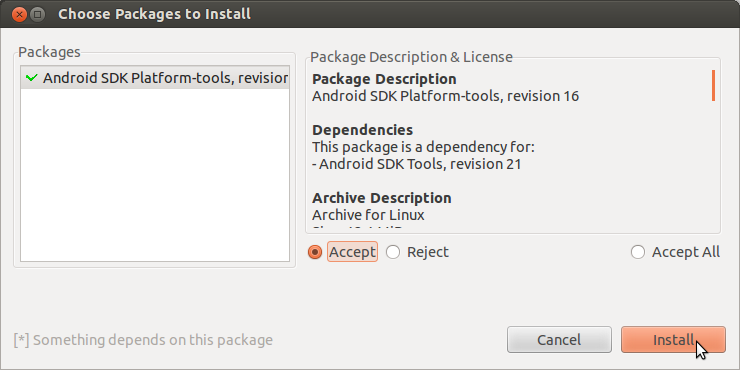
      A window will pop-up asking you to confirm - click on the 'Accept' radio button and then the 'Install' button.

      Confirmation screen

      Accept and install

      The platform-tools package will then be downloaded and installed. A log screen (as shown below) may appear if there are problems during install - ignore the 'Stopping ADB server failed (code -1)' message if it appears on the log - this seems to be harmless. Close the log window by clicking on the 'Close' button.

      Log window

      The screen will now look like the one shown in the screen-shot below.

      Final SDK Manager screen

    4. You will now have to select at least one set of packages for Android application development. For this article, the Android 4.2 (API 17) package is selected by placing a check mark on this package. Then click on the right-pointing arrow to the left of this item to expand it. You can now inspect the list of packages that will be downloaded and installed. The final screen will look like the one shown below.

      Select packages

      Click on the 'Install 6 packages' button - a window will pop up listing all the packages to be installed. Since multiple items have been selected, click on the 'Accept all' radio button - then press the 'Install' button to start the process of downloading and installing the packages. The progress bar at the bottom indicates the status of this process. Also a log screen may appear if there are problems during install - fix the problem and try again if so. The final screen should show that all the packages have been successfully installed as shown.

      Selected packages installed

      That's it - you have installed the latest Android packages necessary for software development. As of December 2012 this is Android 4.2 (API 17) - codenamed Jelly Bean. Is it necessary to install all the other packages (API 3 to 16)? That is entirely up to you - if you really need to develop software only for a specific Android version, then, by all means download and install it using the SDK Manager.

    5. Now we need to set up at least one AVD (Android Virtual Device) on which you can test your developed software. The AVD is an emulator which emulates the ARM processor. To set up the AVD we need to invoke the AVD Manager which is part of the SDK Manager. Click on 'Tools' (in the menu bar) and then click on the 'Manage AVDs...' item. You will see the screen as shown below.

      Android Virtual Device Manager screen

    6. Click on the 'New' button - a new window will pop-up (see below).


      AVD Manager selections

      Give the new AVD a name - for example 'MyJellyBean'.

      Under 'Device' select a suitable device - in the example, I have selected '7.0" WSVGA (Tablet) (1024 x 600: mdpi)'.

      Under Target, select 'Android 4.2 - API Level 17'.

      Leave the 'Keyboard:' and 'Skin:' selected.

      Under 'Front Camera:', you can select 'None' (default) or 'Emulated'. If you have a webcam on your PC, this can also be used as the camera.

      Change the 'Memory Options:' RAM to at least 768 if you have a minimum of 4GB of system RAM. This will make the AVD load a bit faster.

      Leave the 'Memory Options: VM Heap:' as is.

      Leave the 'Internal Storage:' as is.

      Under 'SD card:' I entered 128 MiB which should be sufficient for testing.

      To make the emulator perform even faster, enable GPU emulation by selecting the 'Use Host GPU' under 'Emulation Options'. You can also select 'Snapshot' if you wish.

      The final screen will look like the one shown below. Then click on the 'OK' button.

      AVD Manager data

      If there are no errors, you will see a screen like the one below. Press 'OK' - the AVD list will then show the new AVD - MyJellyBean in this case (see figure).

      AVD Manager results

      New AVD created

    7. To start the AVD, first select it on the list, then click the 'Start' button (see below).

      New AVD selected for starting

      A 'Launch Options' window will pop-up (see below). You can set the display size and wipe the user data from here if you wish - then click on the 'Launch' button. You will then see a 'Starting Android Emulator' screen.

      AVD Launch Options

      Emulator start screen

      While the emulator is starting (may take time depending on the RAM size set and the speed of your system CPU and GPU), a 'thank-you' window from Google may pop-up (see below) - if you wish you can agree to send usage statistic to Google - then click on 'Proceed' to dismiss the window.

      Google thank-you

      The emulator loading screen with a flashing 'Android' sign will be displayed (shown below).

      Android loading screen

      Once the emulator has finished loading, an initial screen will be displayed as shown below.

      Initial screen

      Click on the 'OK' button and the main 'Home' screen will appear (see below).

      Home screen

    8. To test the emulator On/Off button, click the 'power' button on the right side (first row of buttons) to switch off and then click on it again to power on. The login screen will appear (see below) - slide (using the mouse) to unlock the device. The 'Home' screen will appear (see below).

      MyJellyBean powered off

      MyJellyBean powered on - login screen

      Slide to unlock


      Home screen

    9. You can play with the emulator at this stage - close the main window when done. Then close the 'Starting Android Emulator' screen. Close the Android SDK Manager window if you wish.

      Note that at the moment, you have start a terminal. change to the android-sdk-linux/tools/ directory and execute the ./android command every time you wish to start the Android SDK Manager. If you had implemented my tip about setting the PATH environment to point to the android executable, then all you have to do is open a terminal and execute the android command. It does seem to be a bit kludgey but it works. Is there an easier way? There are various suggestions on the Internet, found by using Google. If you are using the Unity interface and wish to place the Android SDK Manager launcher in the dock, I suggest the method outlined in the followthegeeks.com website (http://followthegeeks.com/how-to-manually-create-application-launcher-in-ubuntu-12-04-unity/). To reiterate the instructions:

      a) Open a terminal and execute:

        sudo gedit /usr/share/applications/AndroidSDK.desktop

      In the gedit editor window, copy and paste the following text:

      [Desktop Entry]
      Version=r21
      Type=Application
      Terminal=false
      StartupNotify=true
      Icon=/home/ridz1/Pictures/android-sdk-96.png
      Name=Android SDK
      Comment=Google Android SDK Manager
      Exec=/home/ridz1/android-sdk-linux/tools/android
      Categories=Application;Development;


      Change the items necessary for your system - for example, the location of the android executable (mine is '/home/ridz1/android-sdk-linux/tools/android' - yours may be different. Also make sure that the location of the icon for the Android SDK is valid. Save and close gedit.

      b) Now click on the Unity dash and enter 'android' in the search box. The Android SDK will be displayed - click on the icon to start the program. The program will run and the Android icon will appear as an item in the dock. Right-click on that item and select 'Lock to Launcher'. Viola! You now have a Unity dock with the Android SDK permanently present. The screen-shot below shows my Unity desktop in all it's glory.

      My Unity desktop

      That's it - you now have a working Android SDK and you are now almost ready to start developing Android software on your Ubuntu 12.04. The next blog will describe installing Eclipse - a programming environment for developing Java programs - and with the help of several Google plugins for Eclipse - a programming environment for developing Android programs as well.

    Sunday, July 22, 2012

    OpenJDK on Ubuntu 12.04 (Precise Pangolin)

    On a fresh install of Ubuntu 12.04, you might be surprised to find out that there is no Java installed as part of a standard installation! This can be easily verified by executing the following command in a terminal:

    java -version

    You should see the following response:

      The program 'java' can be found in the following packages:
       * default-jre
       * gcj-4.6-jre-headless
       * openjdk-6-jre-headless
       * gcj-4.5-jre-headless
       * openjdk-7-jre-headless
      Try: sudo apt-get install

    Running update-alternatives on Java also results in the message:

      update-alternatives: error: no alternatives for java.

    You can also confirm this using the Synaptic Package Manager - which is NOT installed by default on Ubuntu 12.04. Install this package by running:

    sudo apt-get install synaptic

    The following is a screen-shot of the result of an 'openjdk' search.


    Since the purpose of this article is to get Java working on Ubuntu 12.04, we need to get all 'flavors' of Java installed - starting with OpenJDK. Follow the steps outlined below to start installing.

    (NOTE: The procedure below is for the 32-bit version of Ubuntu 12.04, but they also applies to the 64-bit version - just replace the 'i386' part,  whenever they occur, with 'x64' for the 64-bit version.)

    1. Start Synaptic and mark the following packages for installation:


      openjdk-6-jdk
      openjdk-6-doc
      openjdk-6-demo
      openjdk-6-dbg
      openjdk-7-jdk
      openjdk-7-doc
      openjdk-7-demo
      openjdk-7-dbg


      Press the 'Apply' button and wait for the download and install process to finish.

    2. Use the update-alternatives command again to see which OpenJDK is set as the 'default' Java - you should see:


      It's clear from the screen that OpenJDK 6 is the 'default' Java and you could use the 'java -version' command to verify this - the output should show:

      java version "1.6.0_24"
      OpenJDK Runtime Environment (IcedTea6 1.11.3)
         (6b24-1.11.3-1ubuntu0.12.04.1)

      OpenJDK Server VM (build 20.0-b12, mixed mode)


    3. To switch between the OpenJDK versions (6 or 7), you can either use the command line 'update-alternatives' utility or the graphical front-end for the same command - 'galternatives'. To use 'galternatives', you need, of course, to install it first by executing:

      sudo apt-get install galternatives

      Alternatively, you could use the Synaptic Package Manager to install this. Once installed, open the dash (if you are using Unity) or the menu (if you are using gnome-shell) and locate the 'Alternative Configurator' utility. Start it, enter your password (the utility requires root privileges), and you should see the following screen:


      Scroll down the left-hand pane until you see the 'java' entry (see figure below) - note that OpenJDK 6 is set as the default. You can use the galternatives utility to change OpenJDK versions by clicking on the radio-button under the 'Choice' column. You should also remember to change the other Java related items (those that starts with the letter 'j') whenever you change versions.


    4. A faster way to switch between OpenJDK versions at one go, is to use the 'update-java-0.5b' utility. This utility can be downloaded by executing:

      wget http://webupd8.googlecode.com/files/update-java-0.5b

      Once the script file has been downloaded, execute:

      cd Downloads
      chmod +x update-java-0.5b
      sudo ./update-java-0.5b

      You should see a dialog box (as shown) pop-up:


      Note that the entry '/usr/lib/jvm/java-1.6.0-openjdk-i386' and '/usr/lib/jvm/java-1.7.0-openjdk-i386' are links to the actual directories 'usr/lib/jvm/java-6-openjdk-i386' and 'usr/lib/jvm/java-7-openjdk-i386' respectively - so it really does not matter which one you select - they mean the same thing. Do not select the 'usr/lib/jvm/java-6-openjdk-common' or the 'usr/lib/jvm/java-7-openjdk-common' entries. First select the 'usr/lib/jvm/java-7-openjdk-i386' entry and click 'OK'. The utility will make all necessary changes for you at one go. To verify run 'galternatives' again and you should see:


      You can verify that the 'update-java' utility has made other changes by selecting the Java related items on the left-hand pane and seeing the result in the right-hand pane.

      Now run the sudo 'update-java-0.5b' utility again - this time select the 'usr/lib/jvm/java-6-openjdk-i386' entry and click 'OK'. Again, the utility will make all necessary changes for you at one go. To verify run 'galternatives' and you should see:


    That's it, you can now choose freely and easily between versions of OpenJDK Java. Enjoy!